If you have no idea what a ‘mechanical’ keyboard is and why it is a ‘thing’, I suggest you read through the rather thorough post at Overclockers.net before partaking of this article.
I became aware of mechanical keyboards from a few hosts that appeared on a few different shows over on Cnet. One in particular would rattle on about how much more satisfying it was to type on them. Also the Das Keyboard was popping up around the web a lot. I do a good bit of data entry so made the appropriate mental notes incase I decided to one day make the ultimate workplace upgrade.
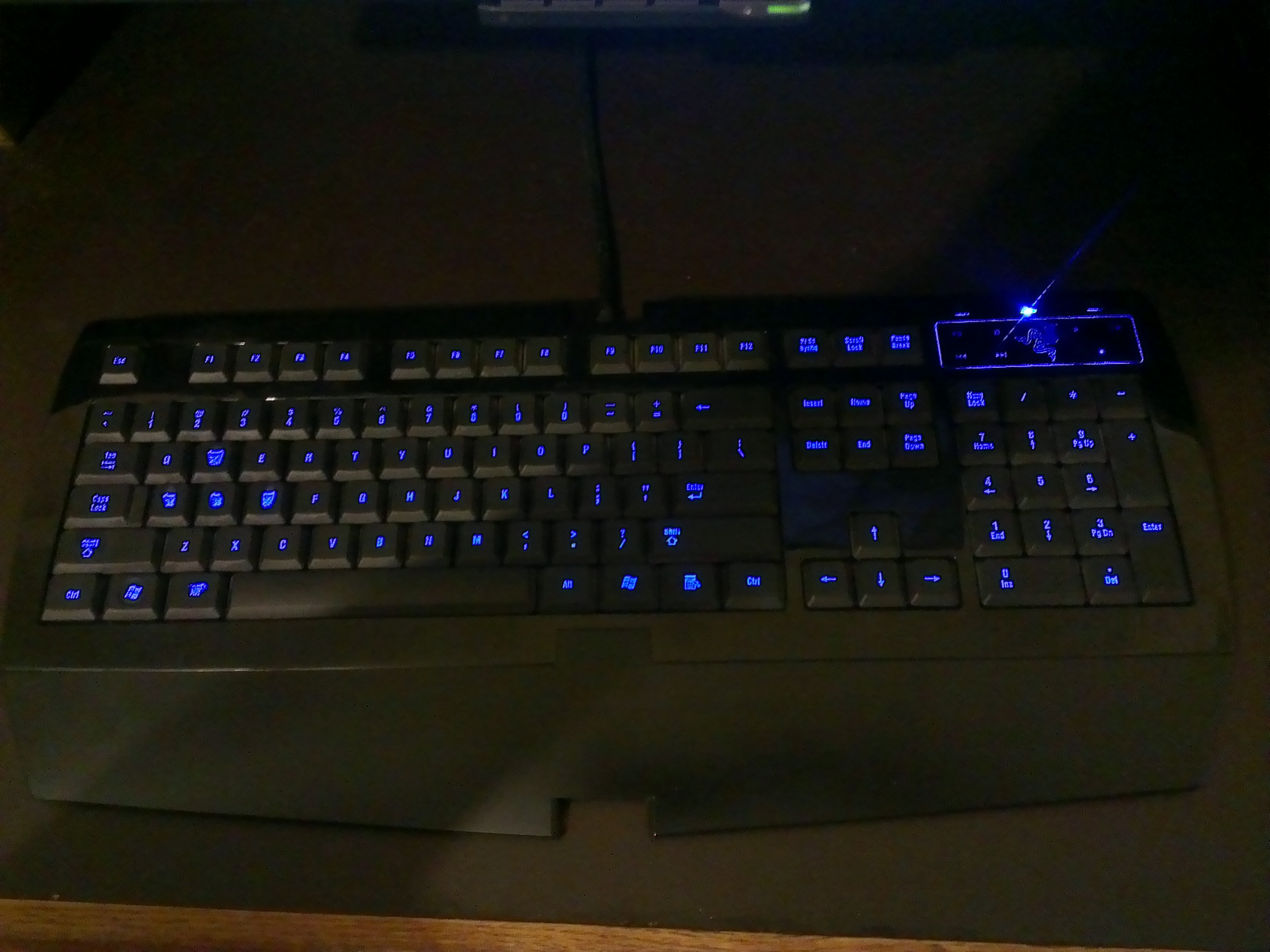
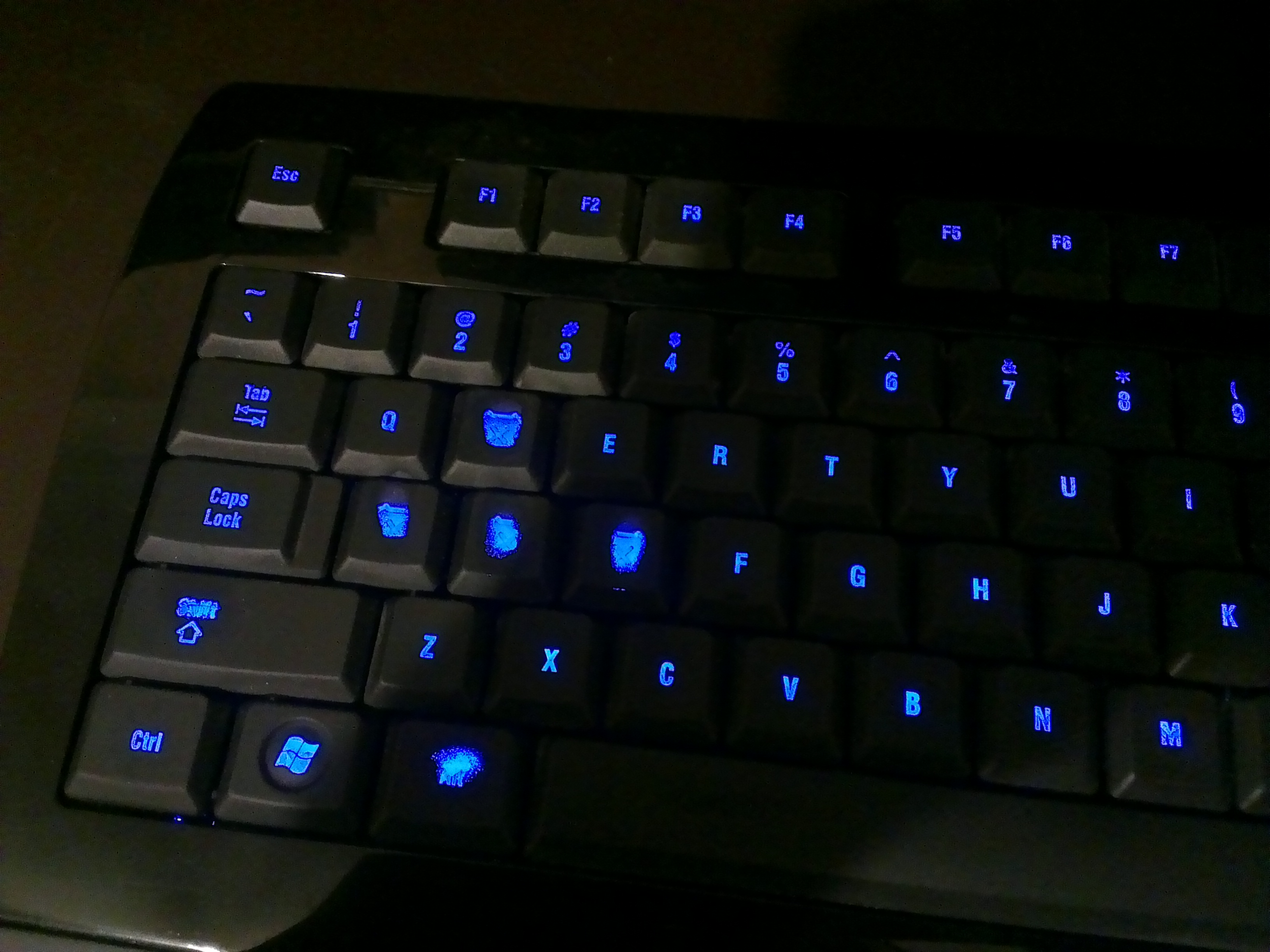
Around that same time replaced my generic, OEM style keyboard with what I hoped would be a rather fruitful gaming keyboard in the Razer Lycosa. And for the most part it has served me very well over the past few years. It’s twitchy action and soft touch was a god send during my heavy World of Warcraft grind sessions. After years of abuse it is not cutting it anymore. The soft-touch key coating is worn, the backlighting is annoying, the touch sensitive media keys don’t work anymore, typing is utter torture, and the action does not measure up to what I have found mechanical switches can deliver.
At some point not long ago gaming grade mechanical keyboards started entering the market from the likes of Razer and Corsair. This brought the mechs back to my attention. If the mainstream manufacturers think this is a thing, I need to pay better attention. I started doing my research and discovered all the information that is nicely summarized in the OC post. However, I could never really justify replacing my Lycosa as I am very on and off with gaming and don’t type enough at home to justify a new keyboard, much less mech that comes at a premium.
My brother was doing similar research as I, and found he could justify replacing his generic Dell board. He went with the SteelSeries G6V2. After really getting a chance to poke at a mech in real life, I decided to start shopping. The SteelSeries uses Cherry-Blacks and I decided I liked them. I couldn’t imagine using the touchier Reds and knew I didn’t want the Browns or Blues that have the ‘snap’ action that makes typing so delightful, but is not as suited for gaming. I would have bought the G6V2 also if it wasn’t for one detail. Sadly, they decided to replace the left-hand Win-key with their function key. That is no good for me. I am a keyboard shortcut junkie and need that left Win-key (this will be even more important when Windows 8 takes hold). While shopping, I took a hard look at what I was replacing…what bothered me about the Lycosa. I made a checklist for what I wanted in my next keyboard:
- Cherry-Black Switches: I had first person experience with them and had positive feedback from my brother
- Durable keys: No soft touch keycaps. Maybe opt for premium materials.
- No backlight: One more thing to break or wear out and possibly impact the functionality of board over time.
- No bells and/or whistles: This is a feat in the gaming keyboard market as manufacturers feel the need to differentiate and do so by slapping whatever half thought out features they can to be distinctive.
- Needs to LOOK like a keyboard: Like the above point, some makers differentiate so much that what started out as a keyboard ends up looking like something out of Dali’s nightmares.
I found very few keyboards that met these requirements and had decent reputations. Since black switches are considered gaming switches, manufacturers feel the need to make flashy ‘gaming’ keyboards around them that take up extra space and have bonus features that get in the way and rely on proprietary software to function fully.
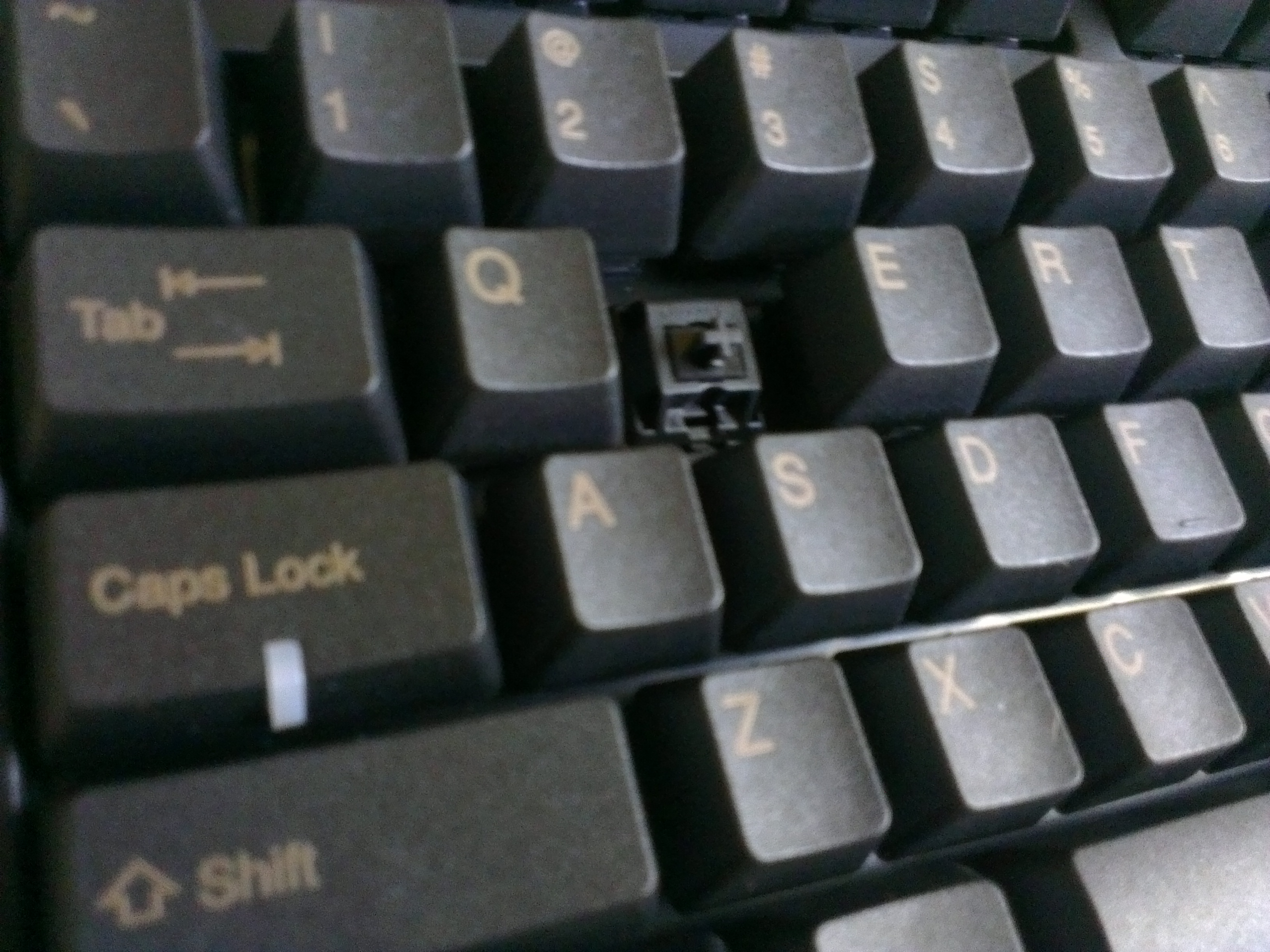
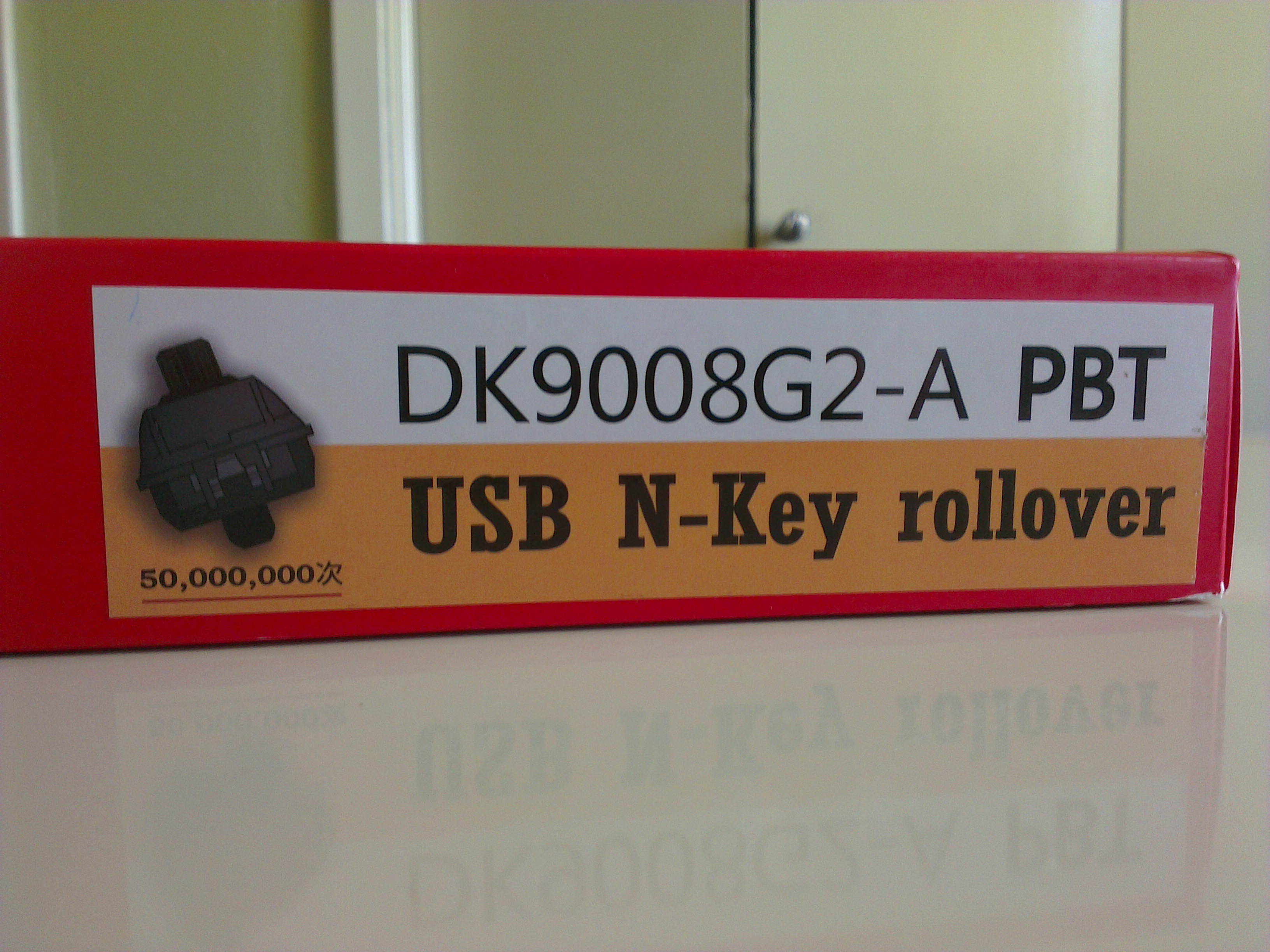
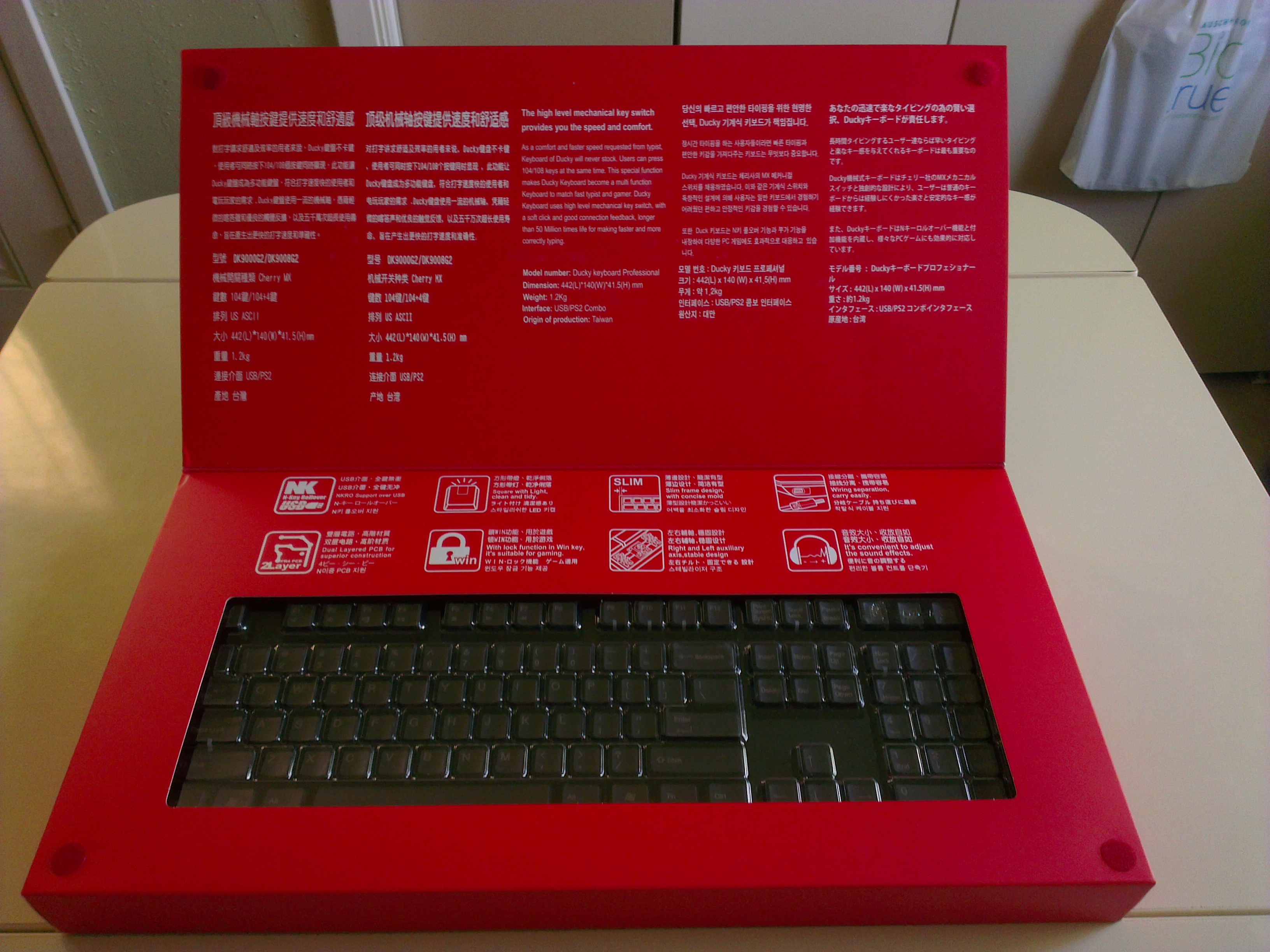
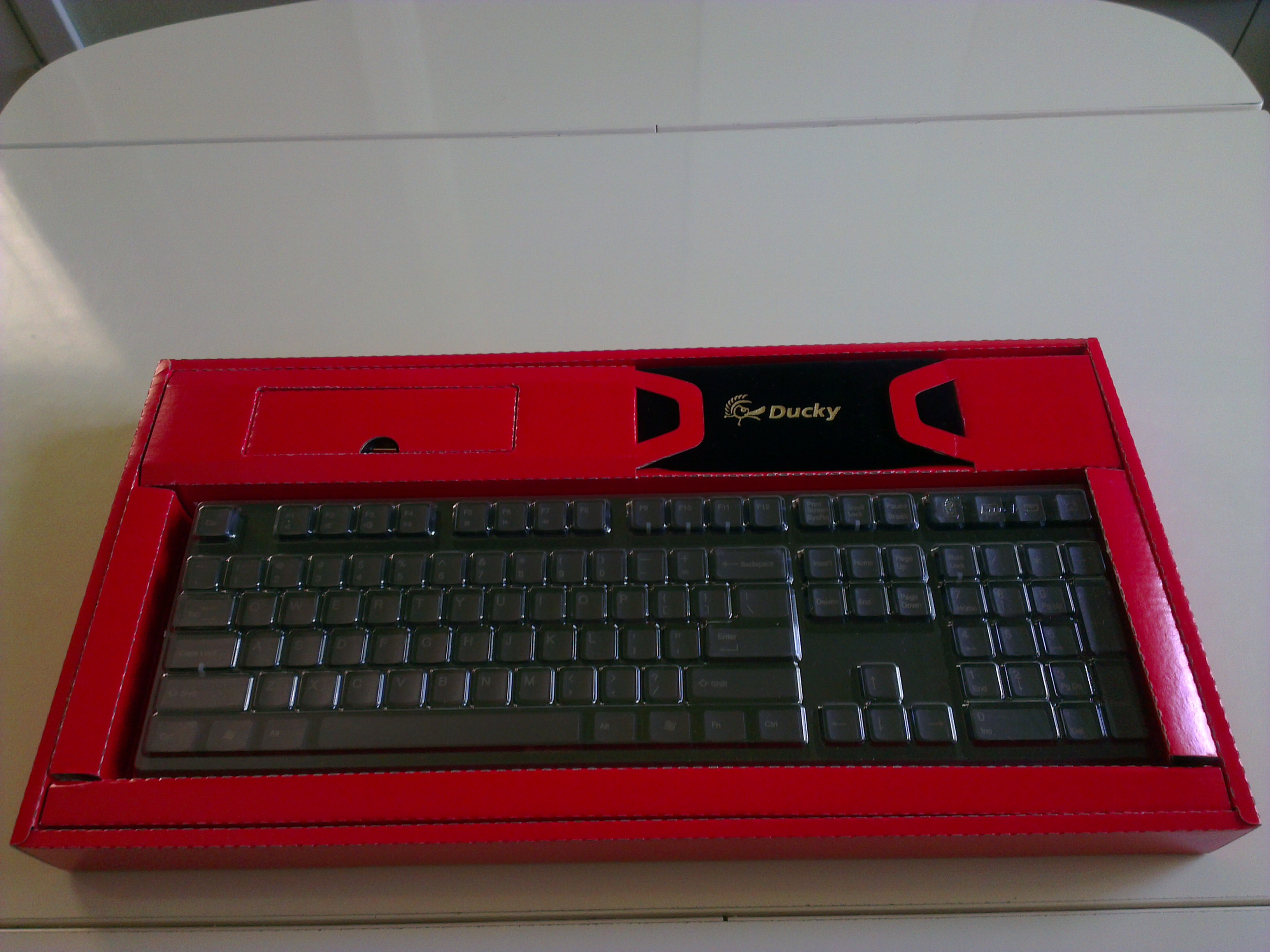
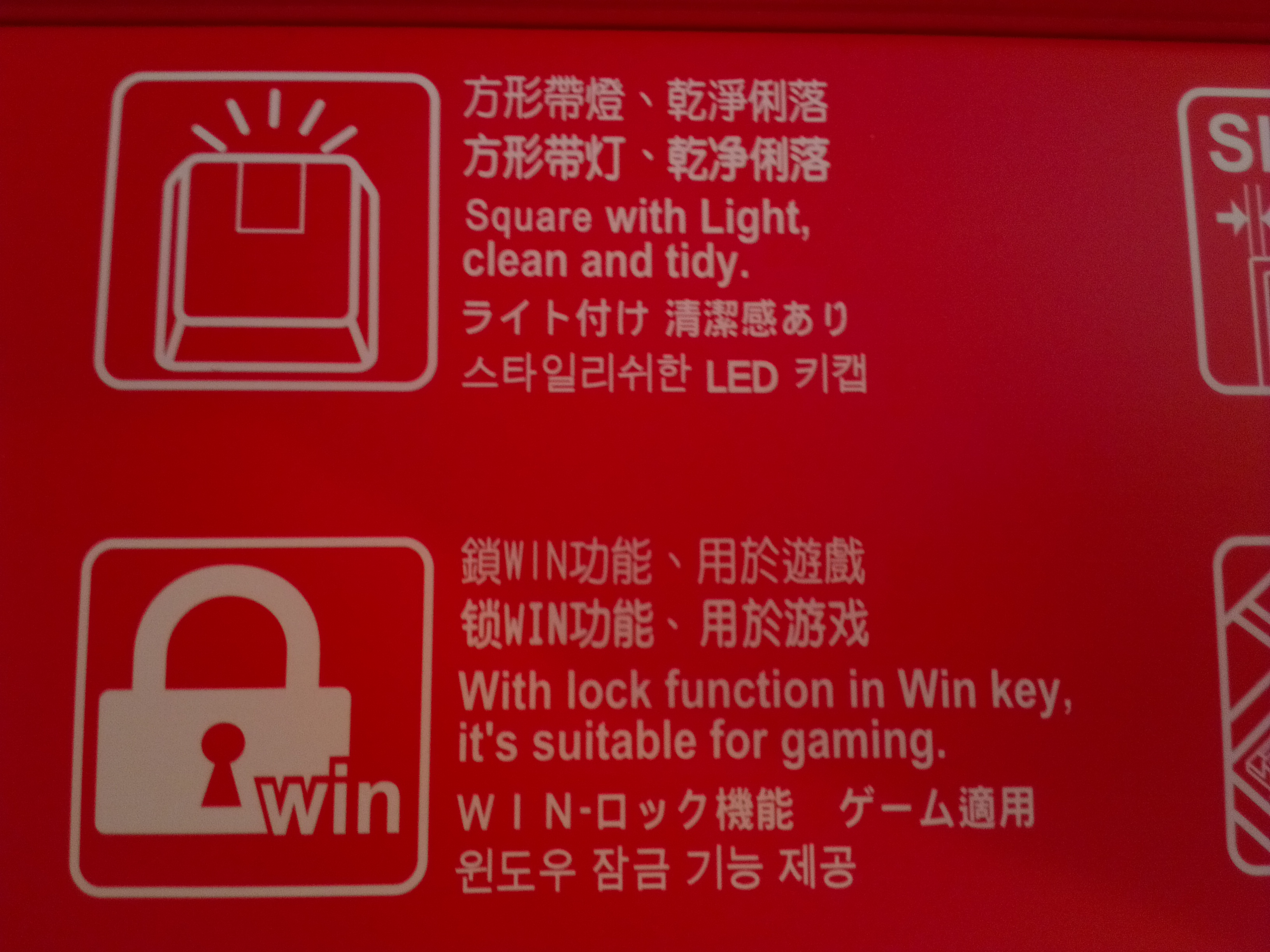
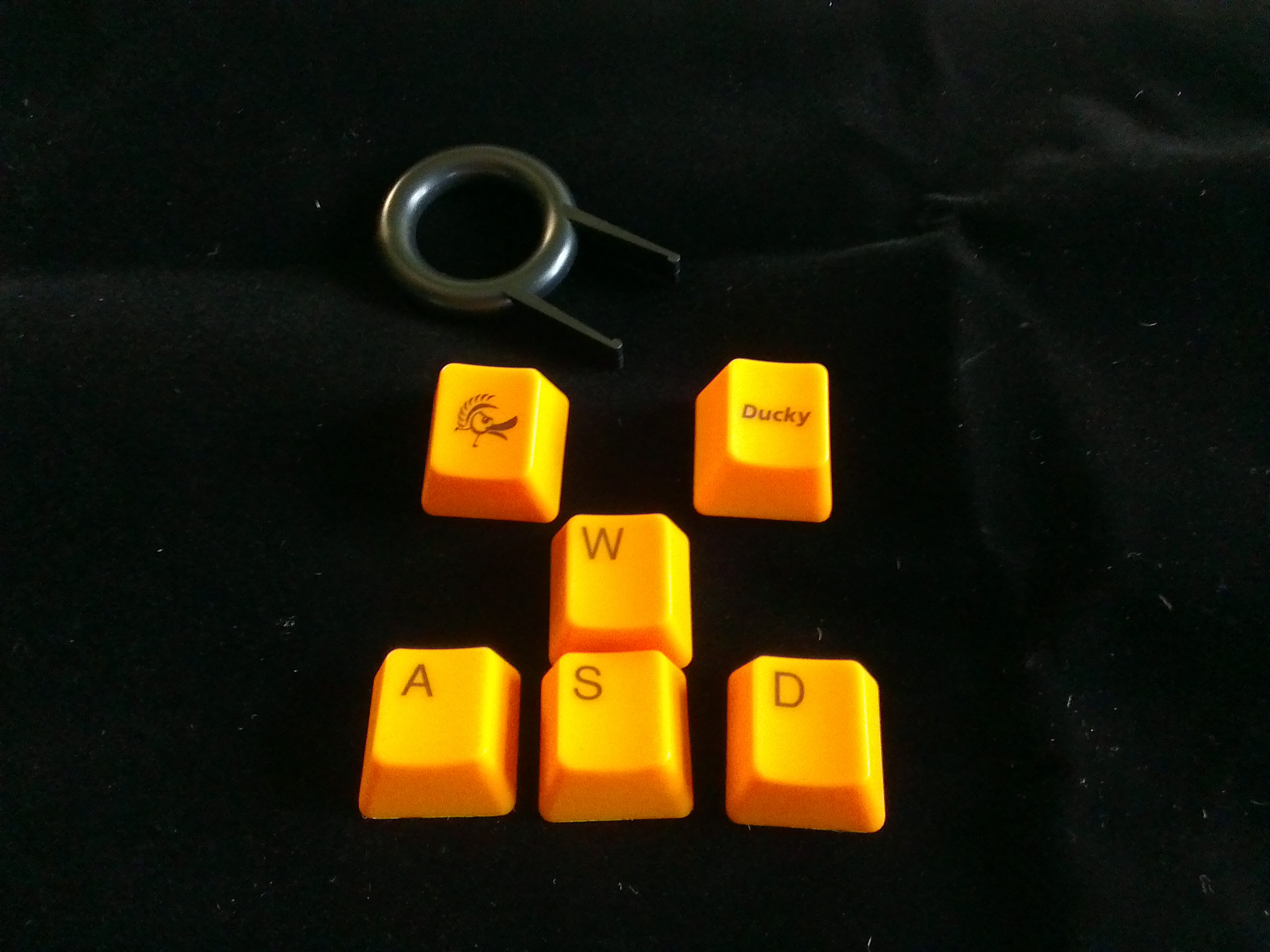
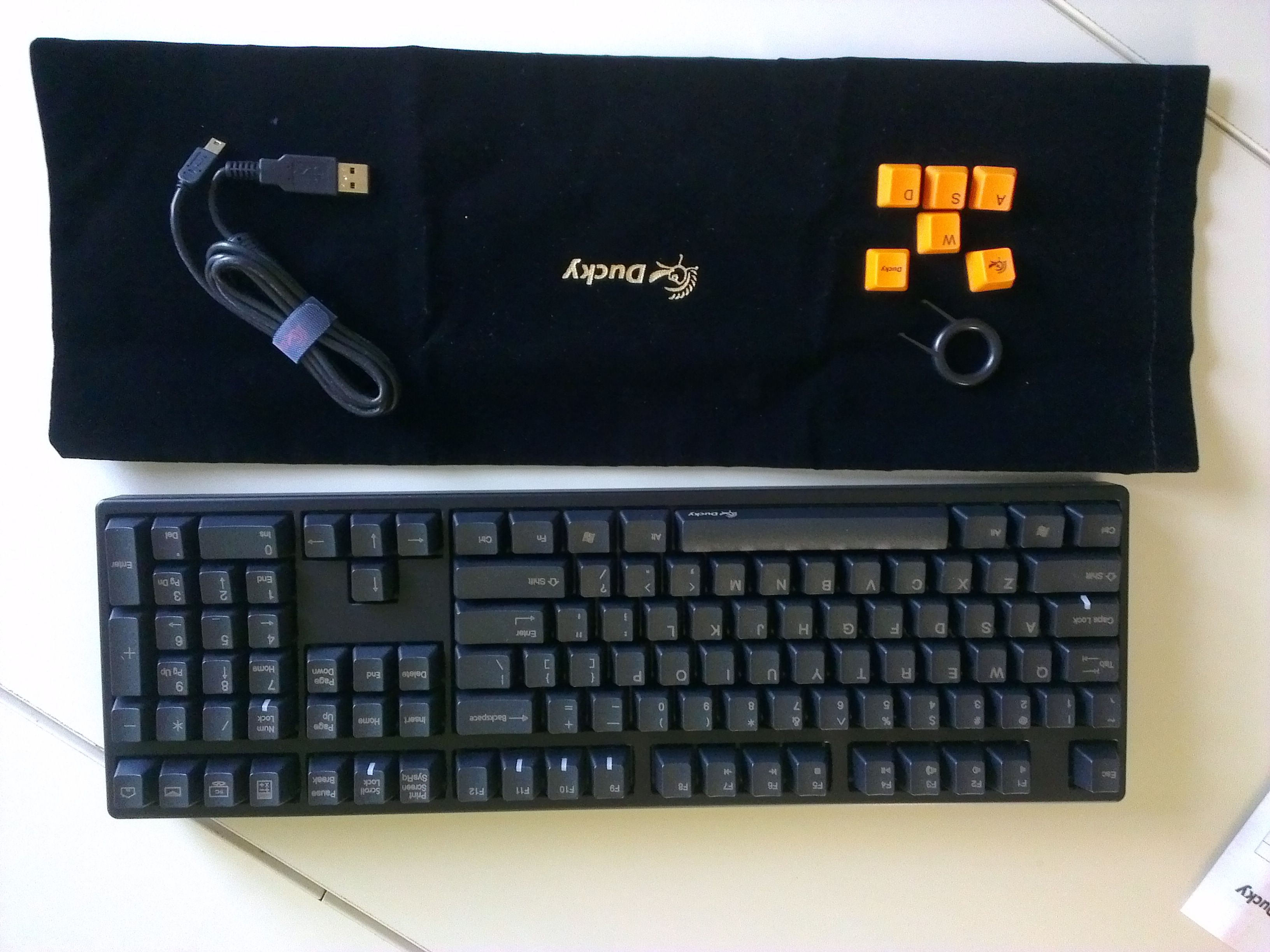
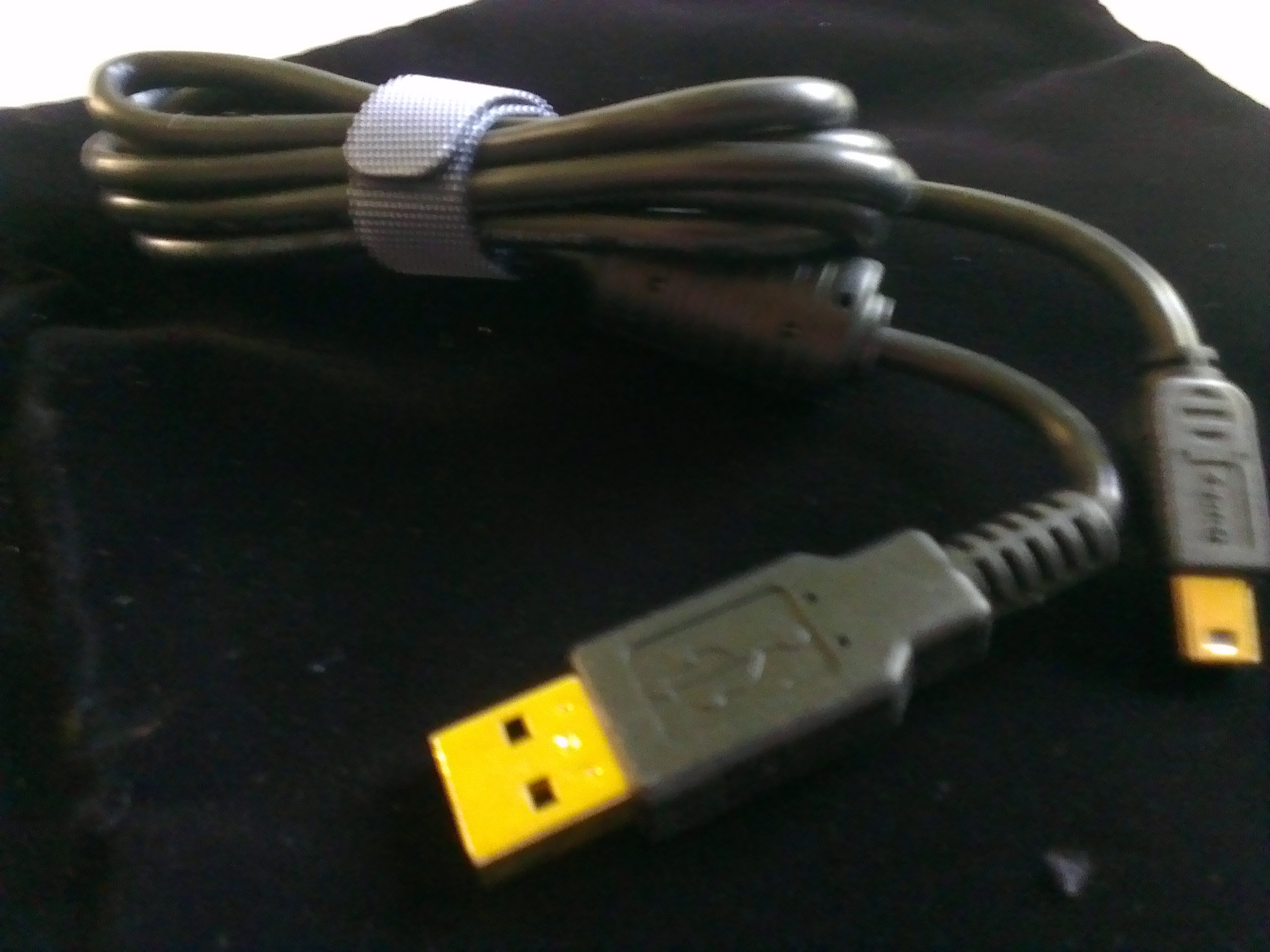
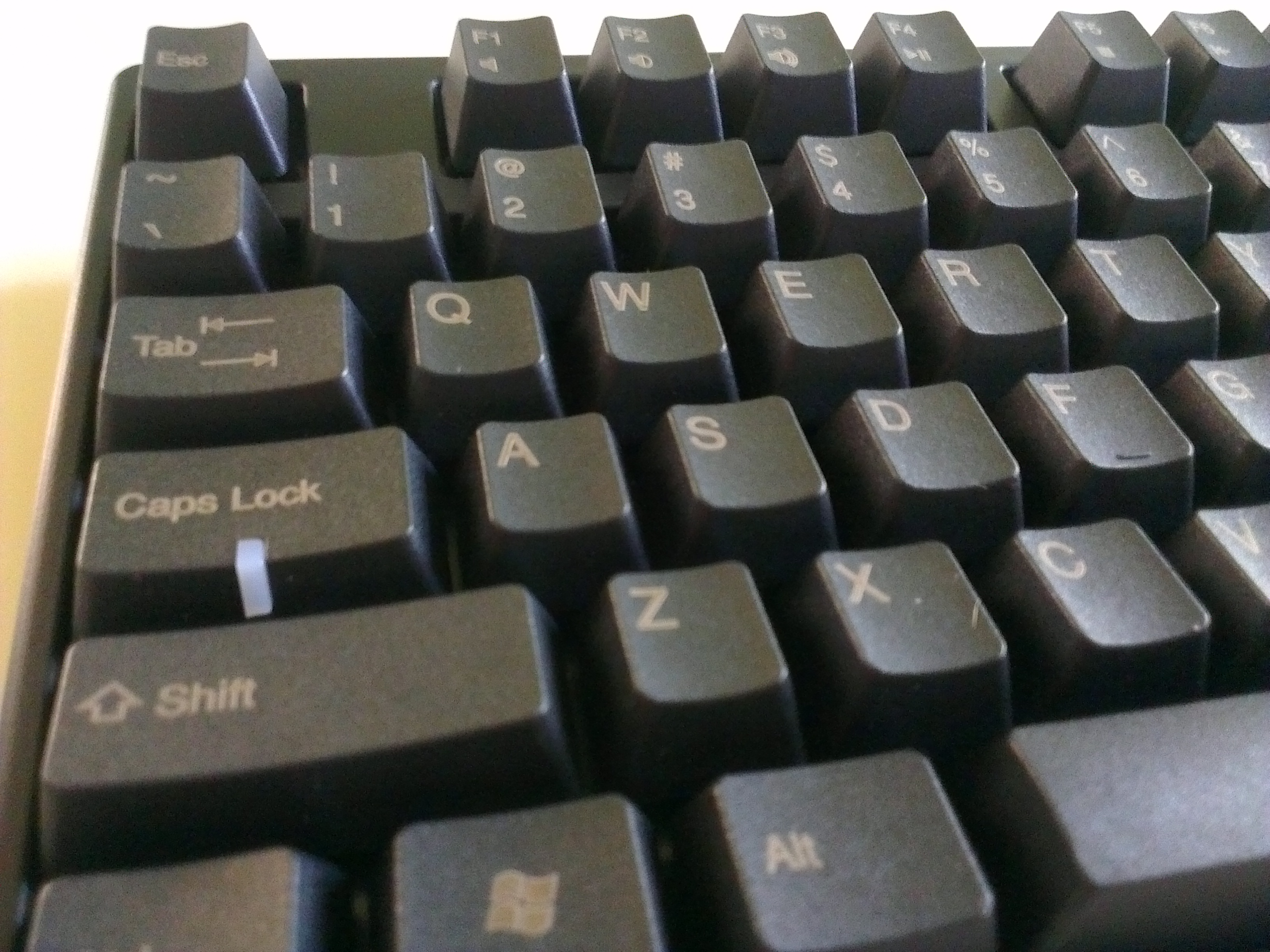
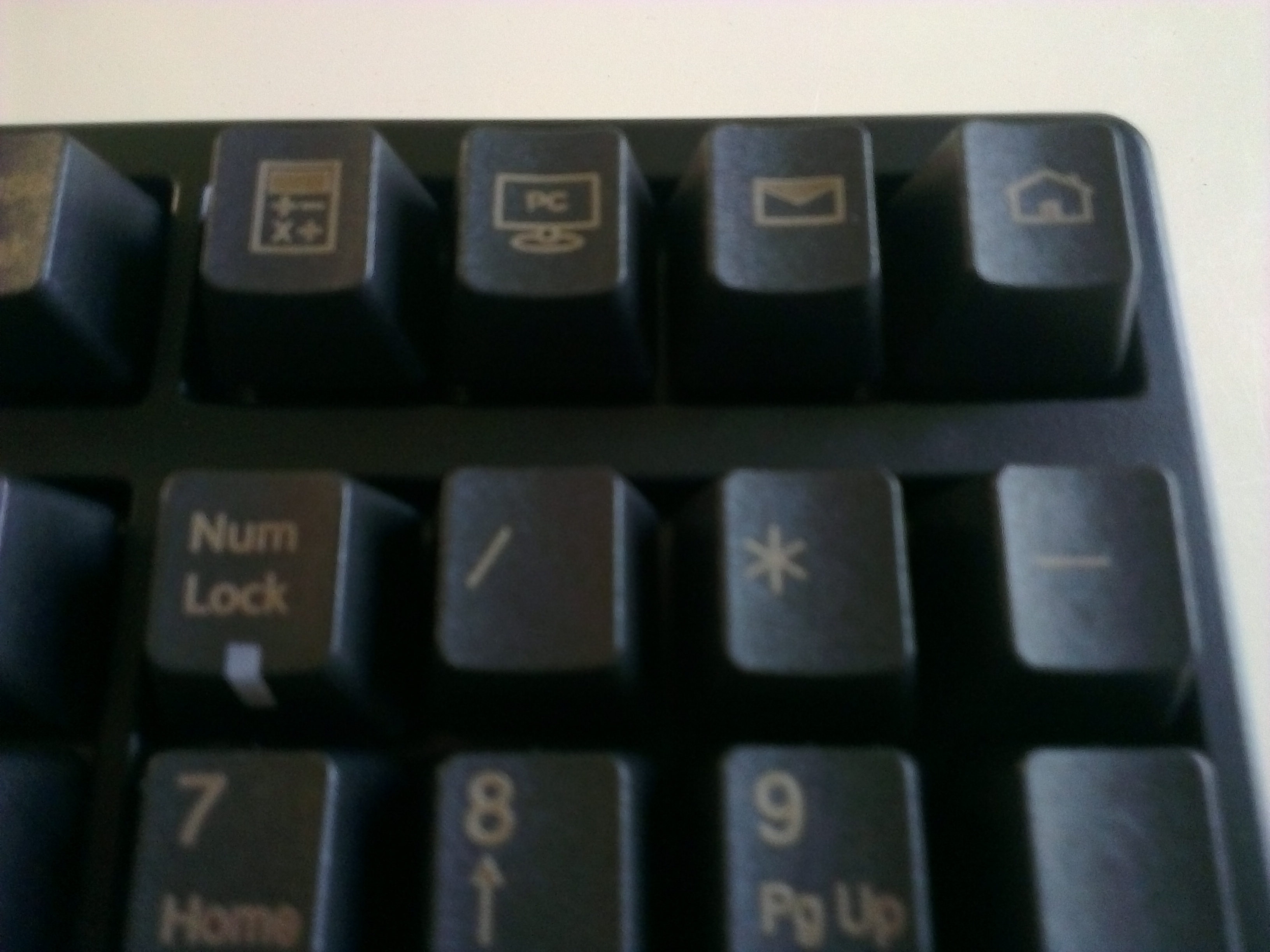
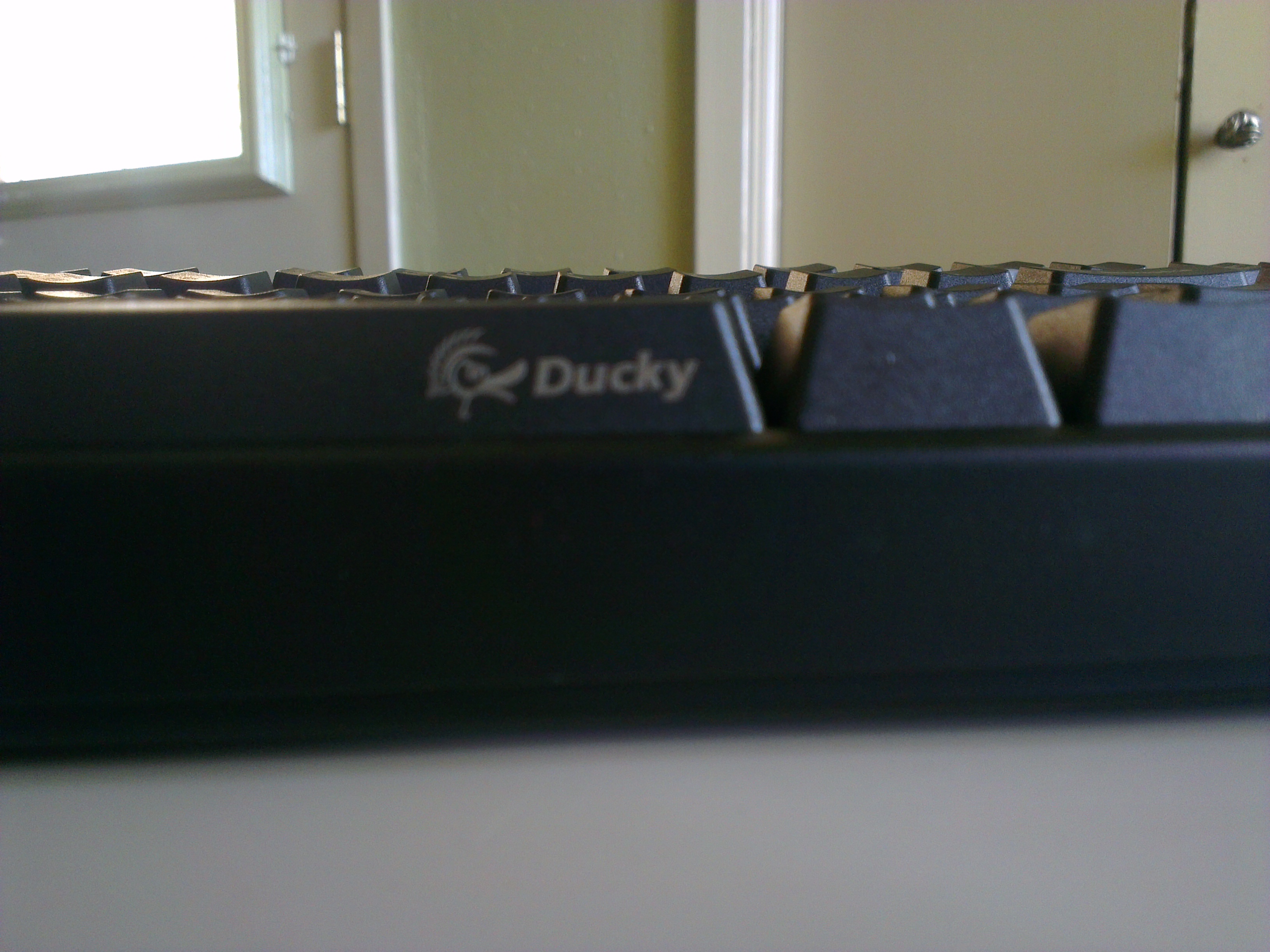
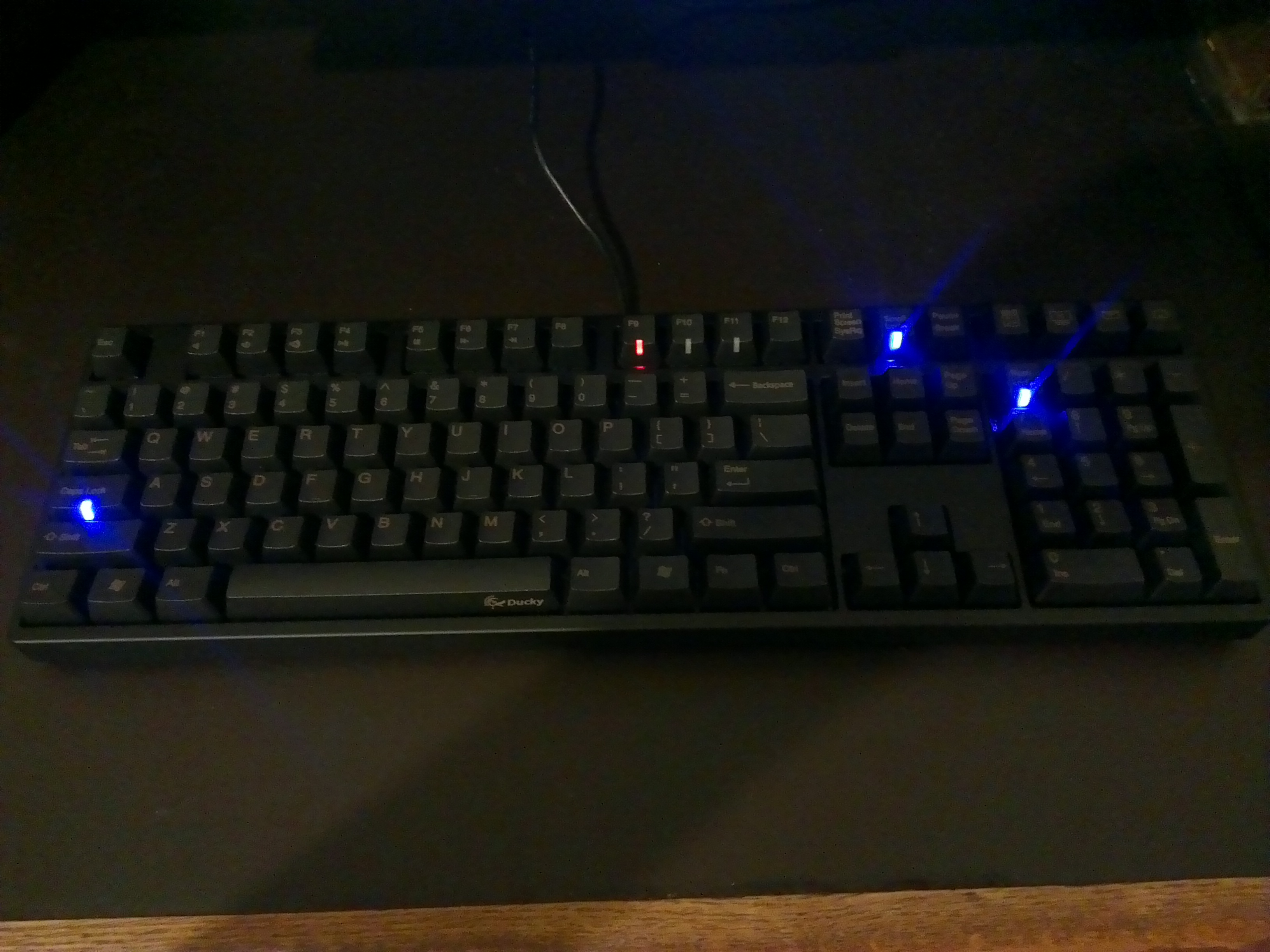
I ultimately decided on the <<Ducky DK9008G2-A PBT>>(Ducky Website). And to really deliver on the durable key front, I went with the PBT over the traditional ABS as it is supposed to last much longer and the letters are laser etched into the plastic. While they decided to replace the ‘context menu’ button with their function button, <Shift + F10> works just as well. It requires no software other than the drivers that automatically installed when plugging it in to enable the media playback and shortcut functions.
…I have actually lived with the Ducky for a while now as this post sat unpublished for a time…
I can say I love this keyboard. Rather than the Swiss Army Knife that most gaming boards tend to be, this is a samurai sword that is designed to do one thing and do it better than anything else. I find my hands are much less fatigued after lengthy gaming sessions and I dare say my Tribes game has improved slightly. While it has a modicum of extra features in the media controls and shortcut buttons, they do not get in the way and are not pivotal to the function of it. About he only thing I could possibly complain about, and this is a stretch, is that the laser etched PBT keys are a touch harder to read in low light and at certain angles. This problem is slightly exaggerated by my particular setup. My monitor sits on a custom riser that brings it far away from the board so there is little ambient light illuminating the board if find myself forgetting to turn the light on. Again, this would probably be a complete non issue for normal people that don’t fear the light.
I whole heartedly recommend the Ducky DK9800G2, and any Ducky for that matter. My only warning is to try and find a way to try out the different switches and come to a conclusion on which one is for you. In case you missed it I will forward you to the OC thread again to learn about them.
And If you are wondering where I got mine, as they can be hard to find here in North America depending on current supply, I got mine from Tiger Imports. Price is what it is on theses things, but they shipped quick and kept me notified on order status well. Despite there being other sources for Ducky’s, Tiger Imports was the only one that I found to carry this particular model which suited my needs perfectly.

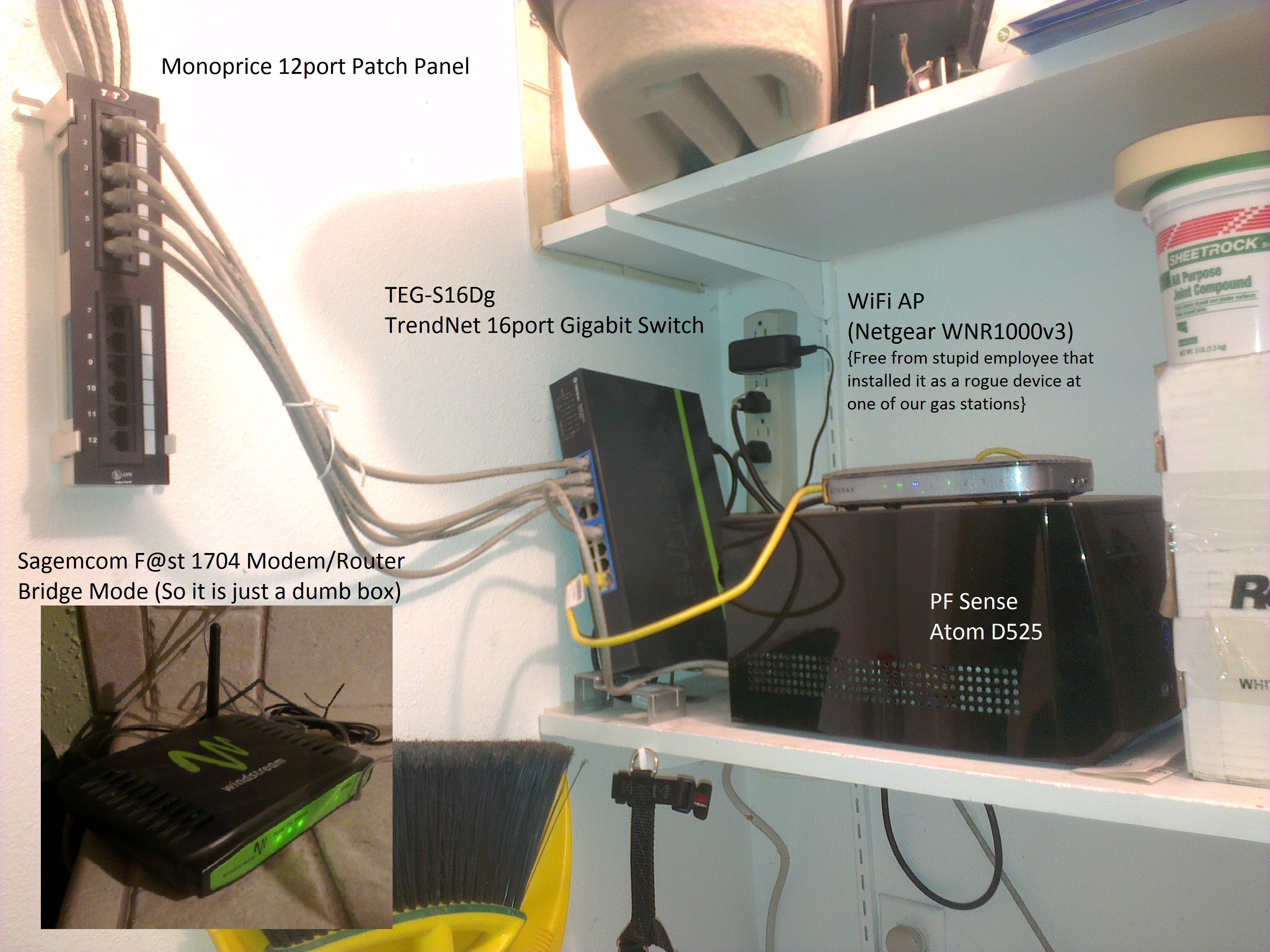
 As great as the Sagemcom is it just couldn’t keep up once my brother and I got into some really twitchy online games. And it didn’t provide the management granularity I was starting to find use of. I decided to re-roll the BlackBox as a stand alone firewall as it was seeing almost no use anymore as an always on Windows box. After much research and finding the free version of SmoothWall wanting, I settled on PFSense.